How to Create Free Online Backup for PC Data

3-2-1 backup strategy says that creating online backups can ensure the security of your data in case of a physical drive or hardware damage, and make it easier for data access from any Internet-connected device. So how to set up a free online backup for your computer data? Here is a complete guide.
What Are the Benefits of Backing up Data Online?
Backing up data online means copying your data to an offsite cloud location, separate from the original data. The location is usually offered by third-party cloud servers. Most of the better-known servers are now run by various major companies, such as Google’s Google Drive, Microsoft’s OneDrive, and so on. Some main benefits of cloud storage include:
- Access files from anywhere and any device
- Work remotely with ease
- Free storage space
- Expandable storage space
- Share files easily
How to Backup Data Online for Free
To create free online backup for your data, you can rely on professional and free cloud backup service like CBackup.
This tool comes with various cloud backup functions, and one of its particular features is multiple cloud backups. That is to say, you can backup computer to Google Drive, OneDrive, Dropbox, and multiple public clouds in one place, and backup data to CBackup Cloud, giving 10GB of free space. Other powerful features on CBackup include:
- Scheduled backup: You can perform automatic backup to cloud on a customizable frequency, such as daily, weekly, monthly, and at specific times.
- Complete backup options: This tool offers to backup individual files and folders, as well as local disks, external hard drives, and entire computers.
- File filter: If you need to backup specific files in a folder, you can use this feature to only include certain types of files or exclude the target files from backup with ease.
- Cloud to cloud backup: Except for PC to cloud backup, this utility also provides you with data backup from cloud to cloud to do cloud transfer with no need for data download & upload.
To perform free online backup for your important data with CBackup, you can follow the steps below:
Step 1. For the first time you use CBackup to back up files, create a free account on its official website, and then log in to its desktop app.
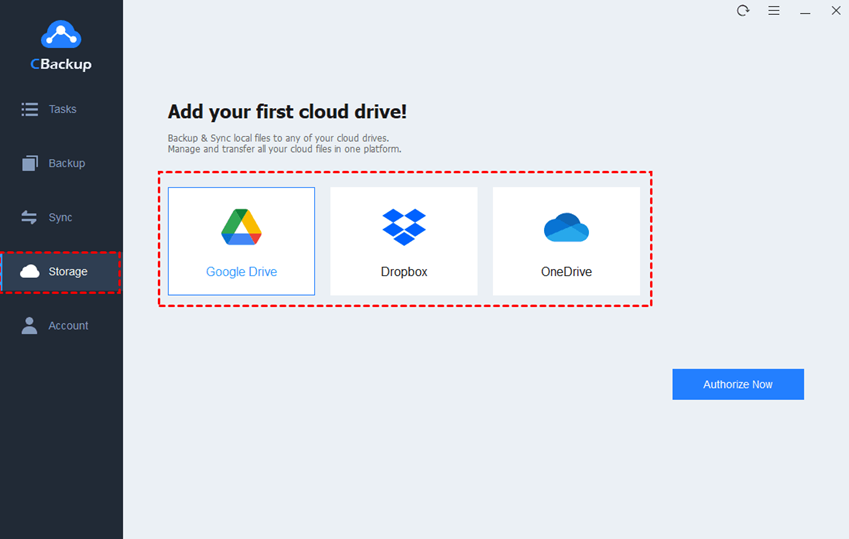
Step 2. To backup data to public clouds, go to the Storage tab, choose a cloud drive, and click Authorize Now to complete the cloud account authorization. Or, you can head to Backup > Backup PC to CBackup Cloud without adding a cloud.
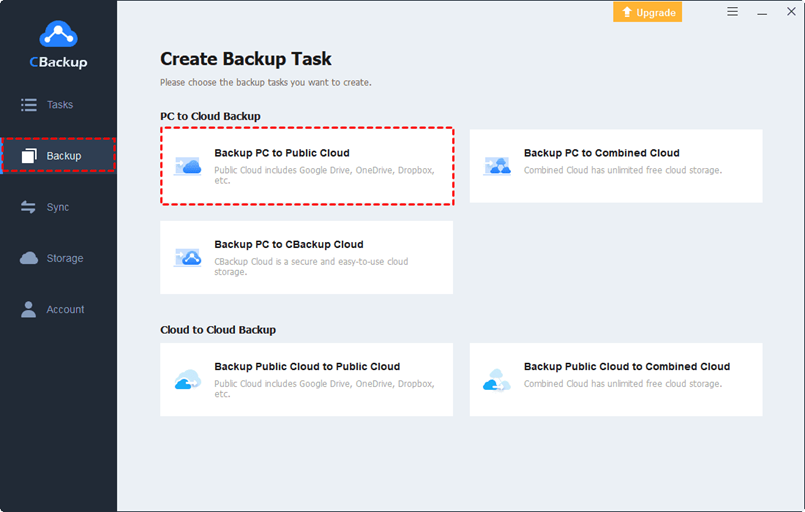
Step 3. Click on Backup, and then select Backup PC to Public Cloud.
Step 4. Choose these files, folders, or entire hard drives you are going to back up on your computer, specify your destination cloud backup drive. Then, click on Start Backup.

Tips:
- You can access scheduled backup, file filter, and other features of CBackup by clicking Settings in the lower left corner.
- To restore a cloud backup when your original data is lost or corrupted, you can locate the backup task on the Tasks screen, click on the three dots button, choose Restore, and determine your restore files and restore path to initiate the process.
Easiest Way to Get 1TB Cloud Storage or More Free
With more and more files being stored online, insufficient cloud storage space can be a problem that many people will face. But don’t worry, with CBackup’s Combined Cloud feature, you can easily get 1TB or more free space by combining multiple or even unlimited cloud accounts.
You can utilize it to merge cloud accounts from a single platform or different cloud drives, as well as free and paid accounts. It supports combination of cloud storage services from Google Drive, OneDrive, and Dropbox. Simple guides on how to use it:
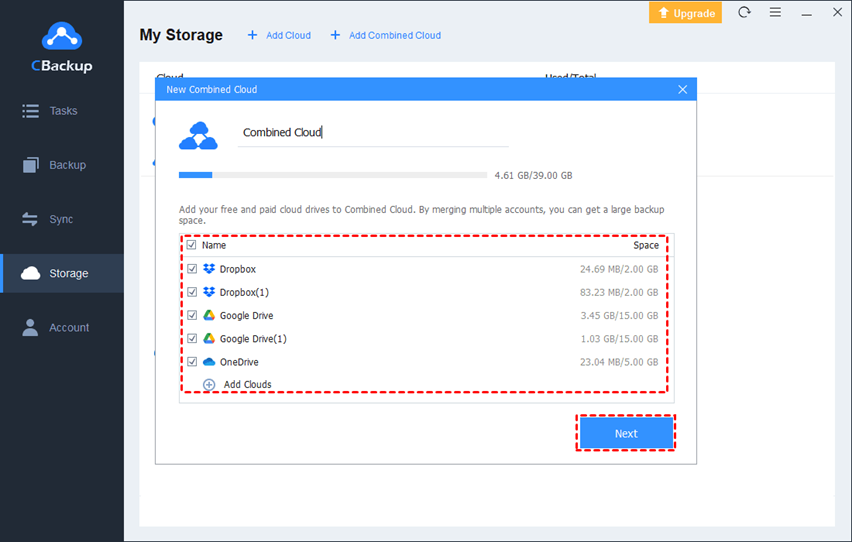
Step 1. On the Storage page, click on Add Cloud to add and authorize all cloud accounts to CBackup.
Step 2. Hit Add Combined Cloud. Then, rename the cloud as needed, select all wanted
cloud drives, and tap on Next > Combine.
Conclusion
Doing free online backups for any of vital data is one of the best ways to keep your files secure in a separate location, and it allows you to access data with high flexibility and recover data quickly and easily whenever you need.
With the free cloud backup solution – CBackup, which provides you data backup from PC to multiple popular cloud storage services, you can automate and ease your computer backups!